NestSheet → AcroRip PRESET IN THE BOX

Export from NestSheet to AcroRip — no halo, no vanished art.

AcroRip’s whole appeal is directness: an Epson-based RIP that prints white and colour in one pass — the vendor’s own headline feature. The boxed preset plays defence around the two kinds of artwork our prepress rules treat as hazards: soft edges and all-white designs.

Facts checked — preset values quote the shipped file acrorip-default.json; RIP claims carry vendor sources below.

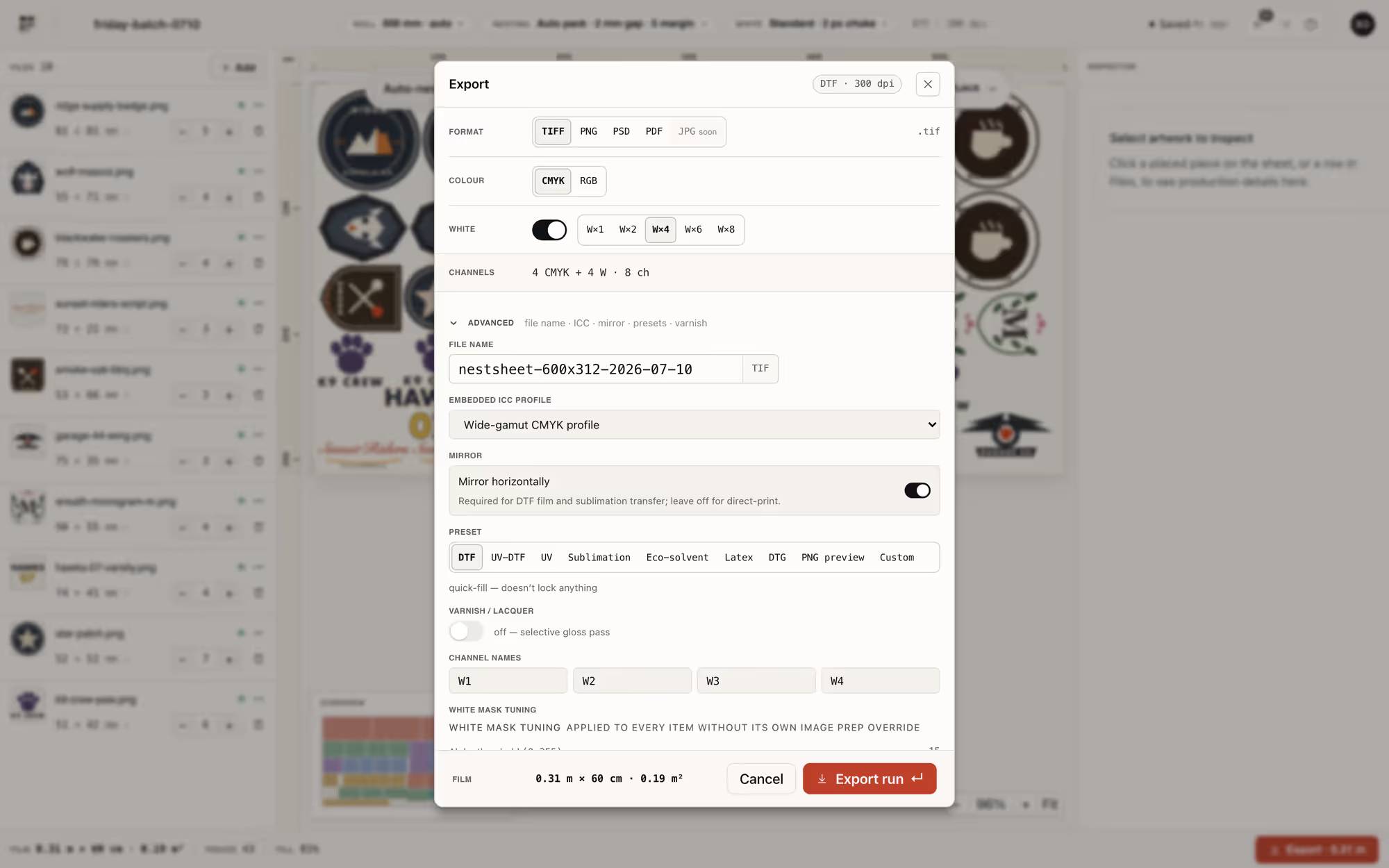
NestSheet export modal set up for a AcroRip hand-off: format cells with TIFF, PNG, PSD and PDF, white and varnish channel counts, ICC selector and mirror toggle in the Advanced section
The export modal: format, channels, ICC and mirror — the whole hand-off in one panel.

The RIP

What AcroRip is — and what it wants.

AcroRIP is a RIP for Epson-based DTG, DTF and UV printers; the vendor’s current line is V11 — sold as desktopDTF and wideDTF editions — with V10.7 still available and V9 and earlier explicitly retired. Its headline feature, in the vendor’s own words: “one pass white and color printing”.

One pass means no second chance for the white layer: white and colour go down together, so whatever is wrong with the file at hand-off is wrong on film. That is why this page is mostly about alpha hygiene, and why the boxed preset refuses to ship a soft edge.

How-to

The hand-off, step by step.

Five steps from nested sheet to hand-off, aimed at clean white on the first try — not the fourth.

  1. Nest on the roll you actually run

    Auto-nest fills your roll (presets 300–1800 mm, custom sheets to 2000 × 10000 mm) with 2 mm gap and 5 mm margin defaults. Run a narrow roll? The packer treats a 300 mm roll with the same seriousness as a 600 mm one.

  2. Repair the alpha before it becomes ink

    Remove-bg leftovers and anti-aliased fringes are future halos. The Inspector’s fix-invisible clears low-alpha stragglers (your cutoff, up to 50 of 255) and fringe repair cleans hard edges — one pass here saves a reprint there.

    NestSheet Inspector remove-background view: the same artwork before and after background removal, with the alpha boundary AcroRip will key its one-pass white on
    Inspector: the alpha you fix here is the white AcroRip prints.
  3. Export the PNG lane

    Pick PNG · RGB in the export modal — 8-bit sRGB with alpha, the boxed preset’s format. We hand AcroRip a flat raster with unambiguous transparency: no spot channels, no layer soup — one image, one alpha channel.

  4. Prove orientation in the exact queue

    The boxed preset declares Mirror on, but the export control can retain operator or preset state; choosing the PNG row does not guarantee a fresh unmirrored state. Record the current control, export an asymmetric target with readable text, and import it into the exact AcroRip version and queue. Decide which stage owns the flip only after that controlled preview and small test.

  5. Make the white call after hand-off, then print the one pass

    Load the PNG and decide the white for the film you run — our file deliberately carries none, and every pixel in it is either fully art or fully nothing, so that call starts clean. Check the white before committing film — a preview if your build offers one, a test strip if not; here is what to look for.

The preset

What the boxed preset pins.

Every value read from server/assets/rip-profiles/acrorip-default.json — the file the product loads.

Shipped values of acrorip-default.json
Field Shipped value
Preset file acrorip-default.json
Preset name AcroRip V10/V11
Format PNG
Alpha binary snap at threshold 128
Colour space sRGB
Mirror on (film transfer)
Resolution 300 dpi
All-white fix gutter dot · #FF0000 · 3 px · opacity 1.0
File naming {order}_{design}_{w}x{h}mm.png
Max sheet length none pinned by the preset

Failure modes

Typical failure modes — and what prevents them.

One-pass printing gives prepress no second chance, so the preset guards against the predictable failures up front. Predictable is fixable.

Halo ring around every piece

SymptomA pale outline traces each design on dark garments. The preset’s own notes name the culprit: “Semi-transparent pixels cause halo effect — use binary alpha snap.”

PreventionExactly what the preset does: pixels at alpha 128-and-up become solid, everything below vanishes, before the file ever leaves NestSheet. Edges land crisp because there is no “half-white” left in the file.

The all-white design that never printed

SymptomA white-on-transparency logo is the easiest job to lose: with no colour anywhere in the file, nothing visibly distinguishes it from an empty sheet.

PreventionWhenever an export contains no non-white pixel, the preset drops a 3 px solid red dot in the gutter, outside the trim — the file is never technically blank, and the dot leaves with the margin waste.

White background printed as white ink

SymptomArtwork arrives flattened on a white rectangle and the whole rectangle prints — background and all. In the file, opaque white paint is artwork, not empty space.

PreventionShip transparency, not white paint: run remove-bg in the Inspector before nesting, then check the canvas — what looks like empty sheet must be checkerboard, not white fill. The preset cannot fix a background that is genuinely opaque; the Inspector can.

A build the vendor no longer supports

SymptomThe rig runs V9 or older — a line the vendor has explicitly retired — so how it handles a current file is nothing the vendor’s pages document.

PreventionCheck the build before blaming the file: the vendor’s own pages list the V11 line — desktopDTF and wideDTF — as current, V10.7 as still available and V9 and prior as retired. Our preset is named for the supported lines — AcroRip V10/V11 — and that is where this page’s advice applies.

FAQ

The questions operators actually search.

Why is there a white outline on my DTF print?
Because some pixels on the artwork edge are neither fully opaque nor fully transparent — and half-committed pixels are how a print grows a pale ring. Snap the alpha to binary (the AcroRip preset’s threshold-128 rule) and clean edge fringes in the Inspector — the outline dies with the semi-transparency that fed it.
Can you reuse DTF film?
No — the transfer consumes the coating, so a botched white pass wastes the whole sheet, not just the ink. That is the economic argument for boring, preventable exports: binary alpha and a mirror check cost seconds; a reprinted metre of film does not.
Is there free DTF RIP software?
AcroRip itself is paid software — the vendor sells it as desktopDTF and wideDTF editions. What can be free is the layer before it: NestSheet’s complete workflow and AcroRip preset are on Free, with 30 m² of clean exports each UTC month.

Sources

Where the RIP facts come from.

What each vendor states — versions, downloads, headline features — we cite from the vendor’s own pages, checked on the date above; the prep and hand-off rules are NestSheet’s own, read from the shipped preset file.

Keep going

Related on this site.

Nest a sheet and export for AcroRip — free.

Binary-alpha PNG export and the AcroRip preset are on every plan, including Free. Halos die in prepress, not on film.

Binary alpha @ 128 · no halo Gutter dot for all-white art Free forever · no card